
Sunday Cyber Projects: Forged at Home, Built with Purpose: Cyber Viking Weather Console

Part Three: Turning Commands into a Working Cyber Viking Weather Console

By now, the mission was clear.
I had my tool: cURL
I had my objective: pull weather into Command Prompt. Now, I needed a worthy data source—something built for the terminal, not the soft comforts of a web browser.
That’s when I discovered something that felt like it belonged in a
Viking longhouse of code: wttr.in
Discovering the Right Tool for the Job
After digging through articles, testing commands, and exploring different approaches, I found a weather service designed specifically for the command line.
wttr.in delivers weather data straight into your terminal.
No browser. No tabs. No distractions. Just clean, direct output.
It’s not just basic weather either. It can display:
🧭Current conditions
🧭Multi-day forecasts
🧭ASCII-style weather graphics 😎
🧭Wind speed and direction
🧭Humidity
🧭Moon phases 🌙 (because even Vikings check the sky before sailing)
It was everything I needed to bring my Cyber Viking Weather Console to life.
Reality Check: Linux vs. Windows
As I started testing commands, I quickly ran into a common problem:
Most examples online are written for Linux. They look simple, clean, almost effortless.
Windows Command Prompt?
Let’s just say… it has opinions. I tested commands in PowerShell. I tested them in Command Prompt. I copied examples. I tweaked syntax. I removed what didn’t belong.
And like many of you have probably experienced, I hit that familiar wall:
“This should work…” “Why is this not working…” “Did I just summon a syntax demon?”
That’s when I made a key decision:
Stop fighting the environment—and build for it instead.
I committed to Command Prompt + batch file. That decision made everything click.
Why That Decision Matters
Sometimes the best solution isn’t the newest tool.
🛡️It’s the one that:
🛡️Works every time
🛡️Is easy to run
🛡️Is easy to explain
🛡️Doesn’t require a side quest to install dependencies
For this project, I needed:
⚡ Windows 11 compatibility
⚡ Simple execution
⚡ Reliable output
⚡ Something students, teachers, and families could use
Command Prompt checked every box.
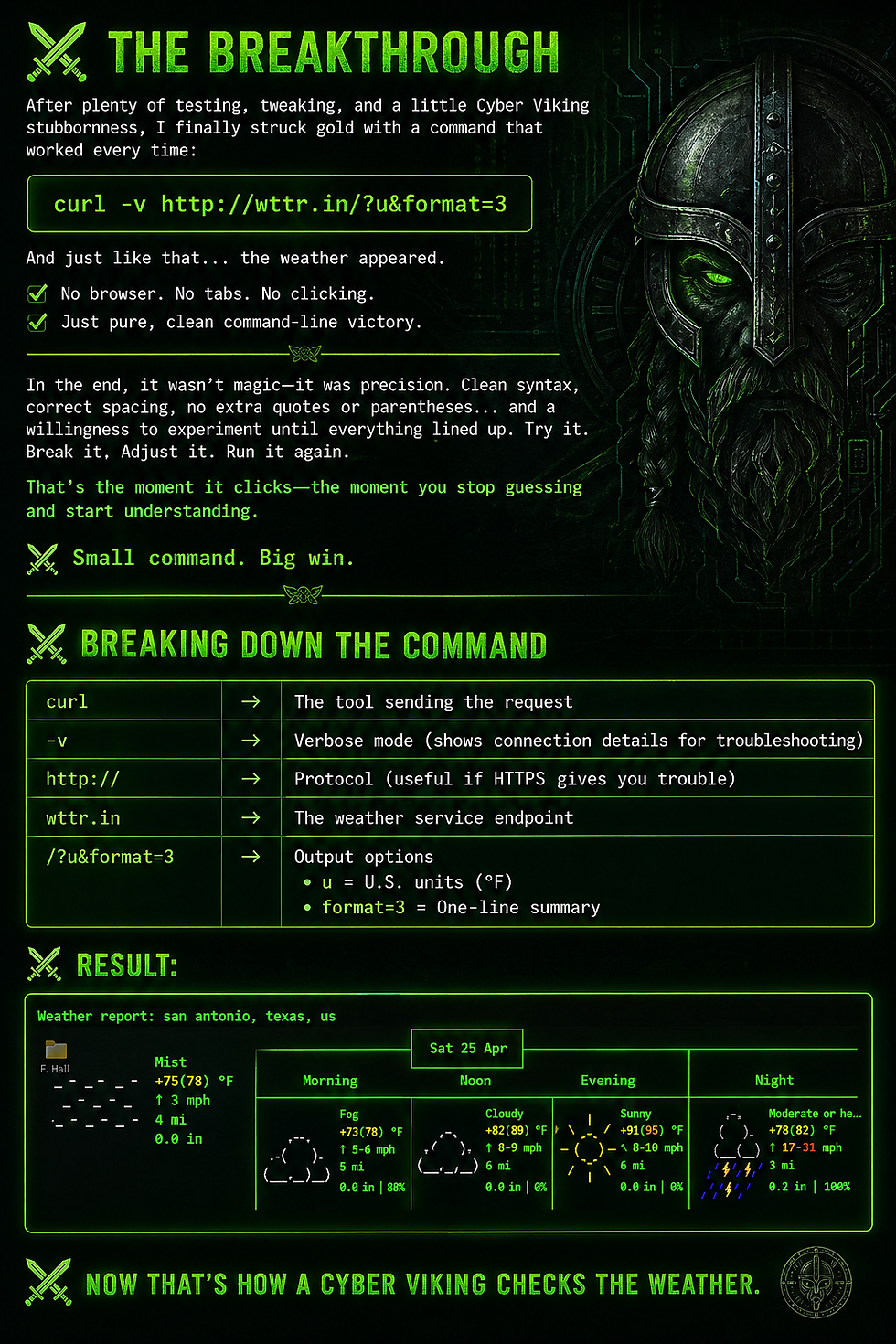
The Breakthrough
After testing, tweaking, and a little Cyber Viking stubbornness, I found the command that worked consistently in Windows Command Prompt:
curl -v http://wttr.in/?u&format=3
And just like that…
The weather appeared. No browser, no clicking, no distractions. Just pure command-line victory.
Breaking Down the Command
curl -v http://wttr.in/?u&format=3
curl → Sends the request
-v → Verbose mode (great for troubleshooting)
http:// → Protocol (useful when HTTPS acts up)
wttr.in → Weather service
?u → U.S. units (°F, mph)
format=3 → One-line output
" " → Prevents CMD from misreading the &
🖥️ Example Output:

Format Options (Customize Your Output)
This is where things get fun.
Once you’ve got your command working, the real power comes from how you shape the output. Think of this like choosing your weapon—same target, different style of attack.
The beauty of wttr.in is that a simple parameter change completely transforms what you see in your terminal.
One-Line Summary (Quick Check)
curl "http://wttr.in/?u&format=3"
What you get:
A clean, single-line weather report.
Example output:
San Antonio: ☀️ +78°F
Best use:
Scripts
Status bars
Quick terminal checks
🔥 Fast. Clean. No distractions.
Short Forecast (Compact View)
curl "http://wttr.in/?u&format=1"
What you get:
A short, compact forecast with a bit more detail than a single line.
Example output:
🌤 +78°F
Best use:
Minimal dashboards
Lightweight terminal setups
🔥 Just enough intel without cluttering your screen.
⚔️ Full Graphic Forecast (The Classic)
curl "http://wttr.in/?u"
What you get:
A full ASCII-art weather report with multiple days, temperatures, and conditions.
Example output (trimmed):

Best use:
Learning
Exploration
Showing off your terminal skills 😎
🔥 This is the full battlefield map.
🛡️ Quiet Mode (Less Noise)
curl "http://wttr.in/?u&q"
What you get: A simplified version of the forecast with reduced extra text.
Best use:
Cleaner logs
Less cluttered output
🔥 Same data, less chatter.
Mix, match, and experiment—this is where you start making it your own.
Understanding the Errors
Now that you’ve seen it work, let’s talk about what happens when it doesn’t.
Because it will happen—and that’s where the real learning begins.
Instead of getting frustrated, start treating errors like battlefield intelligence.
🧱 Error 52: Empty Reply from Server
Translation:
“You made contact… but the other side stayed silent.”
Possible causes:
Server didn’t return data
Connection issue
Protocol mismatch (HTTP vs HTTPS)
Try: curl https://wttr.in
Or: curl http://wttr.in
🧱 Error 28: Connection Timeout / Could Not Connect
Translation:
“You reached the gate… but it never opened.”
Possible causes:
No internet connection
DNS issues
Firewall or network filtering
Network restrictions
Try:
ping wttr.in
nslookup wttr.in
Test another site:
curl https://example.com
Force IPv4 if needed:
curl -4 https://wttr.in
The Mindset Shift
This is the turning point.
Instead of saying:
“This isn’t working…”
You start asking:
“What is this telling me?”
Because in cybersecurity and scripting:
🧱 Errors are not failures—they are messages.
Try It Yourself
Open Command Prompt and run:
curl "http://wttr.in/?u&format=3"
Want troubleshooting details?
curl -v "http://wttr.in/?u&format=3"
Want the full forecast?
curl "http://wttr.in/?u"
Experiment, break it, fix it, run it again.
That’s how real skills are forged.
Why This Matters
This is where the project becomes yours.
You’re not just copying commands.
You’re learning how they work—and how to make them work for you.
For learners, this is powerful:
🪓Immediate feedback
🪓Safe experimentation
🪓Real-world application
🪓Problem-solving mindset
And let’s be honest…
There’s something pretty awesome about pulling live weather data from the command line like a cyber warrior.
Final Thought
At this point, everything came together:
🪓Tool: cURL
🪓Data source: wttr.in
🪓Environment: Windows Command Prompt
But the real win wasn’t just getting the command to work.
The real win was understanding it.
Because in the world of the Cyber Viking…
We don’t just make it work—we make it work our way.
⚡🔥⚡🔥⚡🔥⚡🔥⚡🔥⚡⚡🔥⚡🔥⚡🔥⚡🔥⚡🔥⚡⚡🔥⚡🔥⚡🔥⚡
In Part 4 the last blog about the Cyber Viking Weather Console...We forge it into something Cyber Viking worthy.


Comments